 KeyFlow
功能Features › 快速切换Quick switching
快速切换:手不离键盘Quick switching: hands stay on the keyboard
⌥ + 数字秒开应用,按住 ⌥ 就能看到每个键是谁;Caps 变成 Esc、Hyper 和方向键;触控板手势管理窗口。这是 KeyFlow 最早的部分,也是每天按得最多的部分。⌥ + a number opens any app, and holding ⌥ shows which key is which. Caps Lock becomes Esc, Hyper and arrow keys, and trackpad gestures arrange windows. This is where KeyFlow started, and what you'll press most.
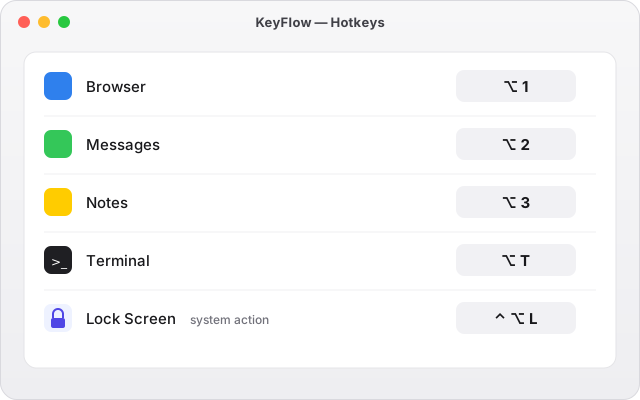
应用快捷键 ⌥1…9App hotkeys ⌥1…9
一键从 Dock 导入,应用没开就打开,在后台就切到前台;已经在最前时可以选择隐藏它或切换它的窗口。任意组合都行,包括 Hyper ✦。Import from your Dock in one click. The hotkey launches the app if it isn't running and brings it forward if it is; when it's already in front, choose to hide it or cycle its windows. Any combination works, Hyper ✦ included.
- 推荐预设:系统设置 ⌥,、访达、终端 ⌥T、锁屏、显示桌面、调度中心、下载文件夹、区域截图到剪贴板、深色模式…Presets: System Settings ⌥,, Finder, Terminal ⌥T, lock screen, show desktop, Mission Control, Downloads, area screenshot to clipboard, dark mode…
- 建议的按键被占用时会提示并改用空闲按键,绝不覆盖已有绑定If a suggested key is taken, KeyFlow says so and picks a free one; it never overwrites an existing binding
- 快捷键数量不设上限No limit on the number of hotkeys
按住 ⌥,速查条Hold ⌥ for the cheat sheet
忘了哪个键是哪个应用?按住 ⌥ 半秒不动,屏幕上出现一条横向的小卡:每个应用的图标和对应的数字。按数字切换,松开就消失。Forgot which key opens which app? Hold ⌥ for half a second and a small horizontal strip appears with each app's icon and its key. Press the key to switch; release to dismiss.
- 只在闲置按住时出现,不改变任何按键的行为;⌥ 点击、⌥ 拖动照常Appears only on an idle hold and never changes what a key does; ⌥-click and ⌥-drag work as usual
- 出现延迟可选 350 / 500 / 700 / 1000 毫秒,可以关掉Delay is adjustable (350 / 500 / 700 / 1000 ms) and the strip can be turned off
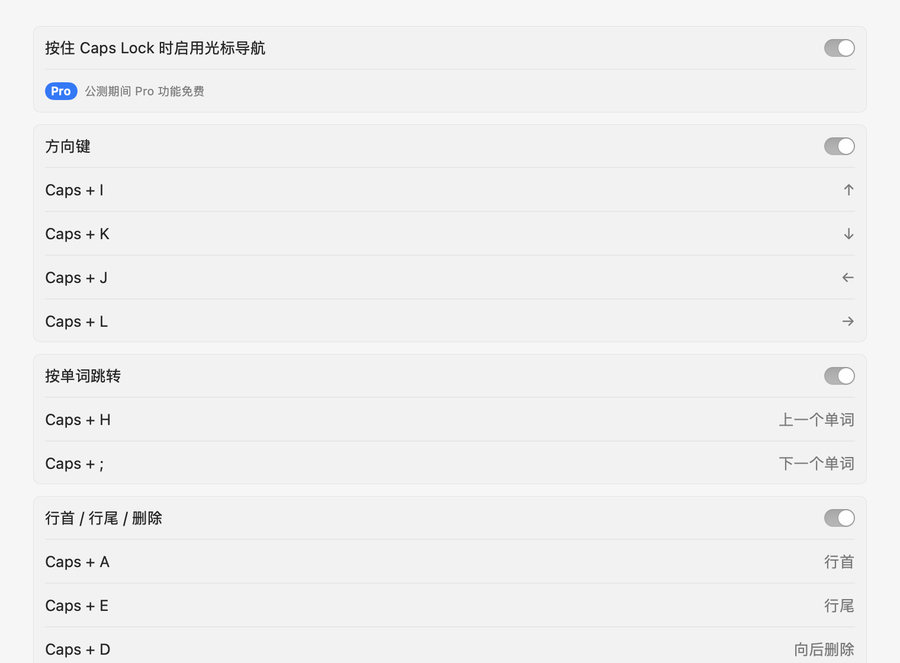
Caps Lock 与光标导航层Caps Lock and the navigation layer
单击 Caps 是 Esc,按住是 Ctrl 或 Hyper(⌃⌥⇧⌘),三种模式随时可用。此外还有导航层:按住 Caps 时 I/J/K/L 是方向键,H/; 按单词跳,A/E 行首行尾,D 删除,B 退格,加 ⇧ 选中。终端类应用默认不启用,真正的 ⌃ 键不受影响。Tap Caps for Esc, hold for Ctrl or Hyper (⌃⌥⇧⌘): three modes. There is also a navigation layer: hold Caps and I/J/K/L are arrows, H/; jump by word, A/E go to line start and end, D deletes forward, B backspaces, and ⇧ selects. Off by default in terminals; the real ⌃ key is untouched.
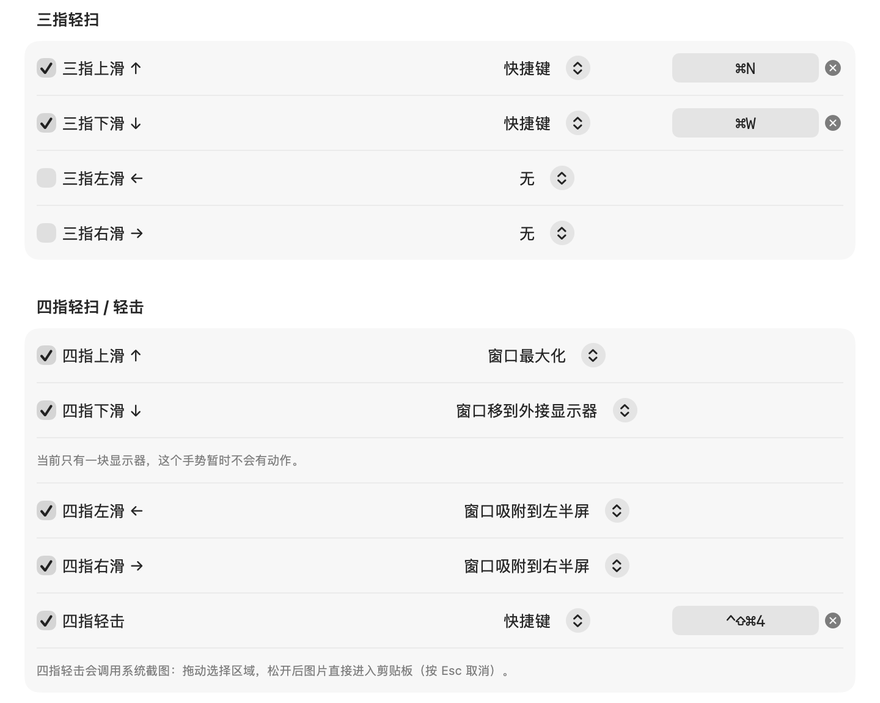
触控板手势与窗口Trackpad gestures and windows
三指 ↑/↓ = ⌘N / ⌘W;四指 ←/→ 把窗口吸附到左 / 右半屏,↑ 最大化(再划一次还原),↓ 移到外接显示器;四指轻击一下框选截图到剪贴板。每个手势可以单独开关或改成别的动作。Three fingers ↑/↓ = ⌘N / ⌘W; four fingers ←/→ snap the window to the left or right half, ↑ maximizes (swipe again to restore), ↓ moves it to another display; a four-finger tap takes an area screenshot to the clipboard. Each gesture can be turned off or reassigned.
已经有一套配置?从 Karabiner-Elements 和 BetterTouchTool 导入规则,KeyFlow 会自动检测冲突,也会提示 Raycast 等工具占用的快捷键。Already have a setup? Import Karabiner-Elements and BetterTouchTool rules; KeyFlow checks for conflicts and flags shortcuts held by tools like Raycast.